
Manage conflicts of interest Effortlessly
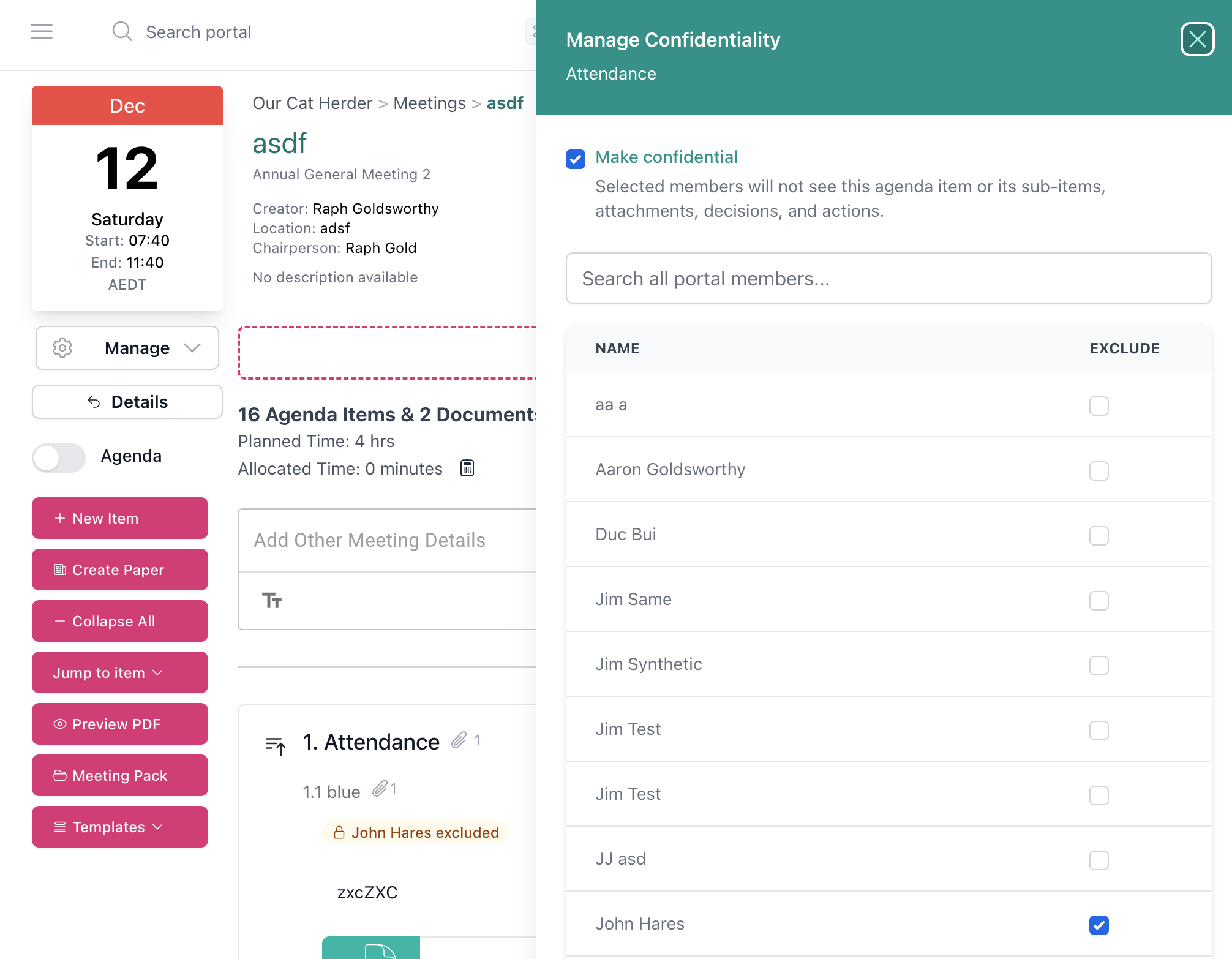
Make an agenda item confidential and choose who is excluded. They take part in the rest of the meeting, and the item, its papers and its minutes stay hidden from them.
For conflicts, public meetings and in camera items
Everyone stays in the same meeting, and each item goes only to the people who should see it.
Conflicts of interest
A director declares an interest in a contract on the agenda. Exclude them from that item before the papers go out. They read the rest of the pack and join the rest of the discussion as usual.
Publicly excluded business
School boards, councils and other bodies that meet in public can keep in committee items in the same meeting, then publish the agenda and minutes with those items left out.
In camera and sensitive items
Run a board-only session without management, or keep CEO performance, remuneration, legal advice and complaints with the people who need them.
The chair decides, item by item
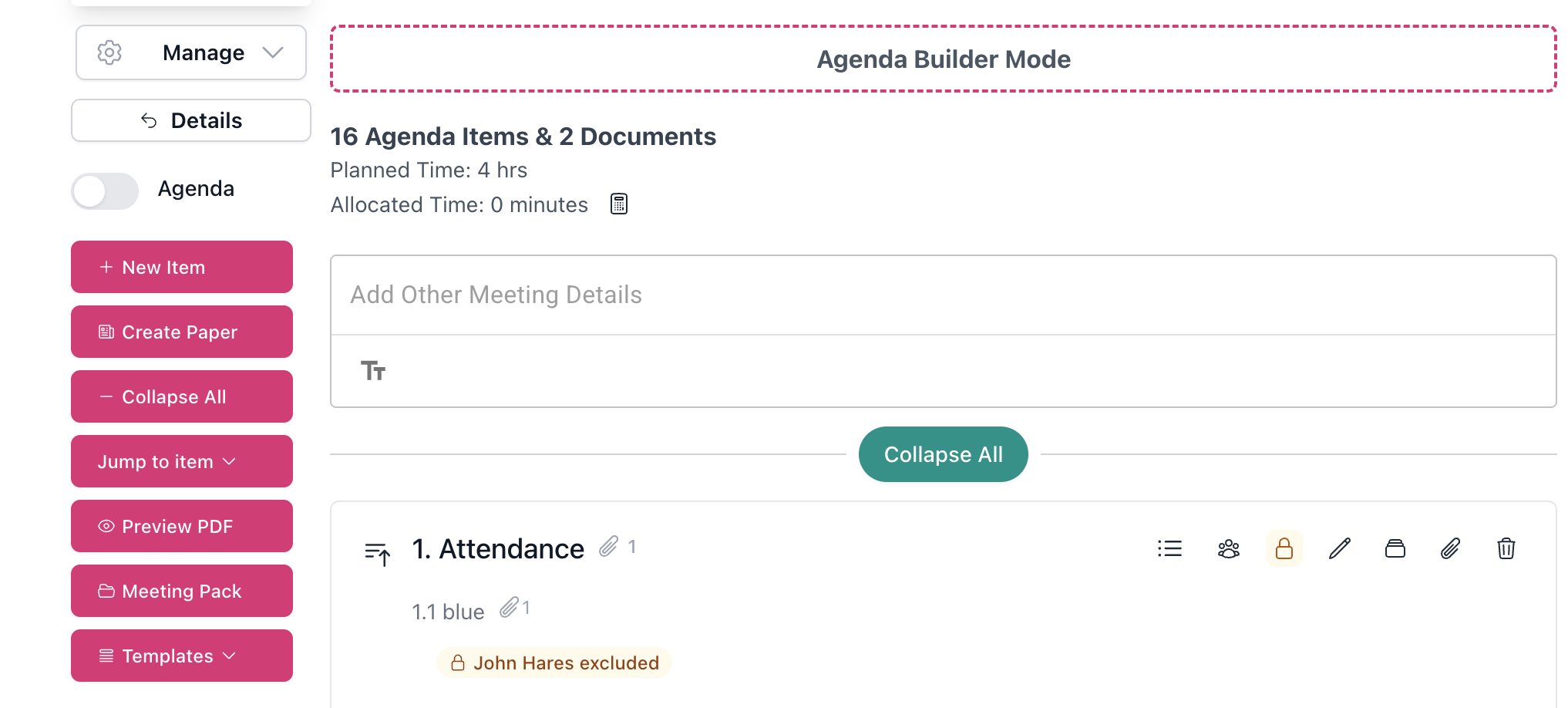
Open the agenda, click the lock on an item, tick Make confidential and choose who is excluded. Confidentiality set on an item covers all of its sub-items too.
-
Set by the meeting's chairperson or creator
Only the person chairing the meeting and the person who created it can make items confidential. Holding the Admin role on the portal does not give that control.
-
Anyone can be excluded
Directors, staff, the company secretary and portal admins can all be excluded from an item. Nobody can exclude themselves, so the chair and the meeting's creator act as a check on each other.
What an excluded person sees
Everything else in the meeting works as normal for them. For the confidential item:
| Where | What they see |
|---|---|
| Meeting papers | The item, its sub-items and their attachments are hidden. |
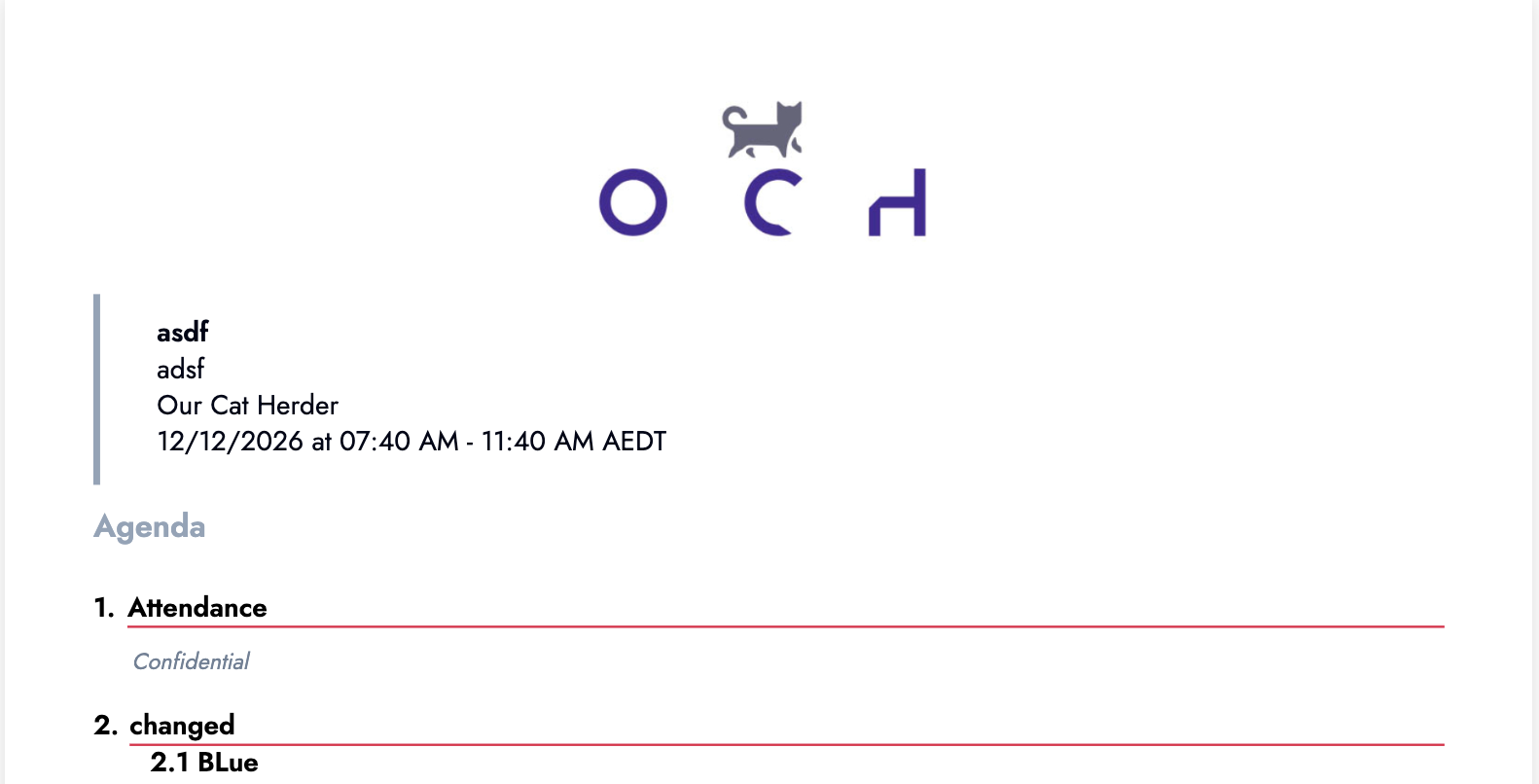
| Agenda and minutes | The item appears as Confidential. The rest of the agenda and minutes are complete. |
| Meeting pack | Their pack is built without the item's papers. |
| Meeting folder | Files uploaded to the item do not appear for them. |
| Search, emails, actions and decisions | Content from the item stays out of their search results, emails, actions and decisions. |
Publish a version without confidential items
When the chair generates the agenda, minutes or meeting pack, they can tick Hide Confidential Items. The document leaves out every confidential item and its papers, ready to publish or send to a wider audience.
Untick it to generate the full version for the board. For organisations that meet in public, such as New Zealand school boards with publicly excluded business, the public minutes and the full minutes come from the same meeting.

When the minute taker is excluded
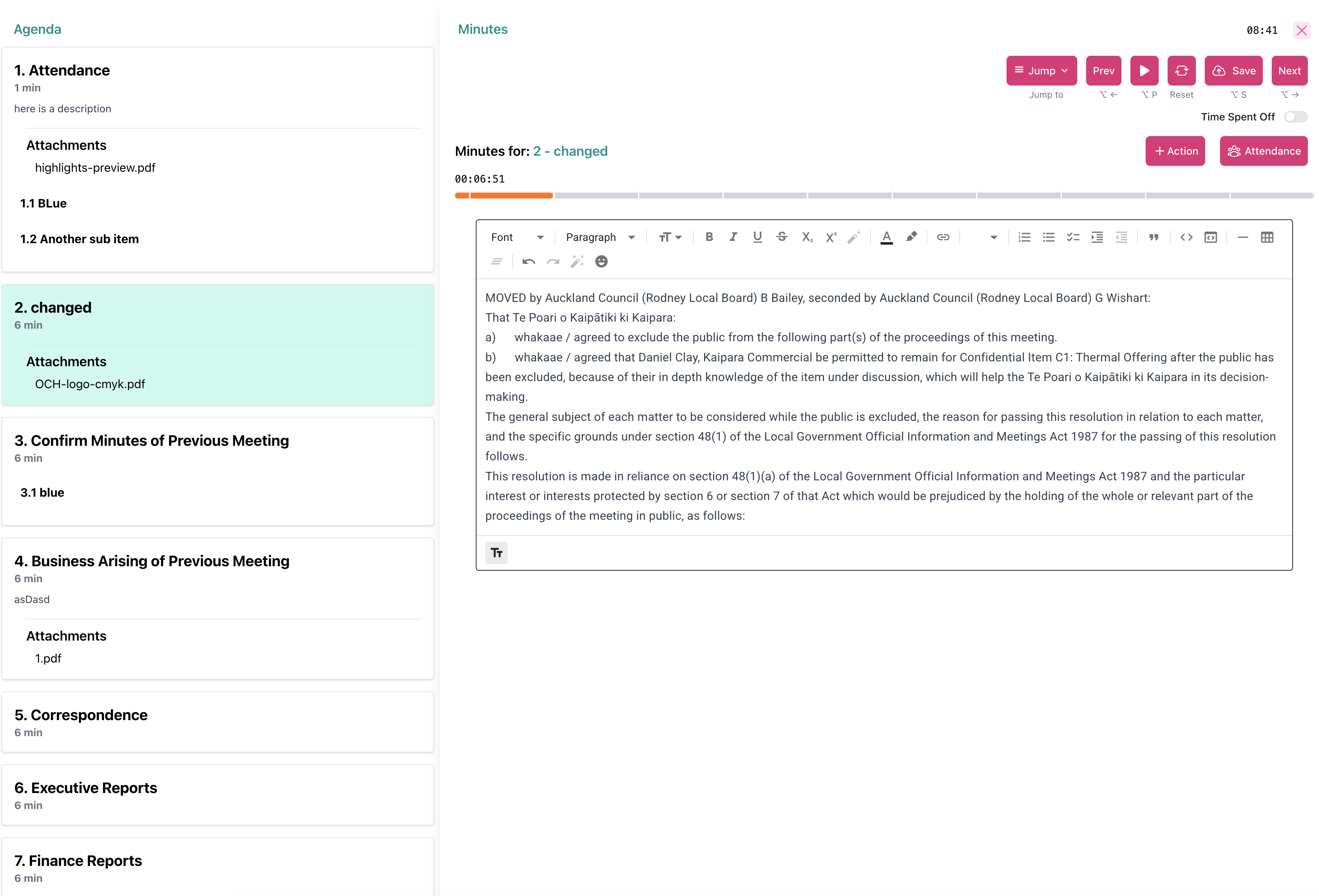
If your minute taker is excluded from an item, they keep taking minutes for the rest of the meeting. The minute taker moves straight past the confidential item, and someone with access, such as the chair, records the minutes for it.
Four steps before the papers go out
Set the exclusions when you build the agenda, then run the meeting as usual.
Make the item confidential
Click the lock on the agenda item and choose who is excluded.
Upload the papers to the item
Files uploaded straight to the item take its confidentiality with them.
Plan the minutes
If the minute taker is excluded, agree who records that item.
Confidential agenda items are included on every portal. No extra fee. From $595 a year, unlimited users.
Related reading
Article
Manage conflicts of interest effortlessly
How confidential agenda items work, from the chair's first click to the public minutes.
Article
Managing conflicts of interest in non-profits
Policies, registers and a culture of disclosure on charity and non-profit boards.
Help docs
Confidential agenda items video guide
Setting exclusions, what excluded people see, public versions and minute taking.
Frequently asked questions about confidential agenda items
- How do we manage a board member's conflict of interest in a meeting?
- Make the agenda item confidential and exclude the conflicted member. They cannot see the item, its sub-items, its papers or its minutes, and they take part in the rest of the meeting as usual.
- Can we exclude a portal admin from an item?
- Yes. Anyone can be excluded from a confidential item, including people with the Admin role.
- Who can make an agenda item confidential?
- The meeting's chairperson and the person who created the meeting. Nobody can exclude themselves, so if the chair has a conflict, the meeting's creator excludes them.
- Can we publish minutes without the confidential items?
- Yes. Tick Hide Confidential Items when generating the agenda, minutes or meeting pack. The document leaves out every confidential item. Untick it for the full version.
- What happens if the minute taker is excluded?
- They take minutes for the rest of the meeting. Someone with access to the confidential item, such as the chair, records the minutes for that item.
Ready to manage conflicts in the meeting itself? Start your free 45-day trial.
Confidential agenda items included. No extra fee. No credit card required.
We're here to help
Whether you want a walkthrough before your next meeting, help setting up public and internal minutes, or advice on handling a conflict for the chair, our team is ready to assist.